Bring in the spreadsheet. Keep a way back in.

A lot of collections already live in a spreadsheet. Serials, calibers, what you paid, where it sits. Food in another workbook. Ammo in a third. That was never laziness. It was the list you could actually keep.
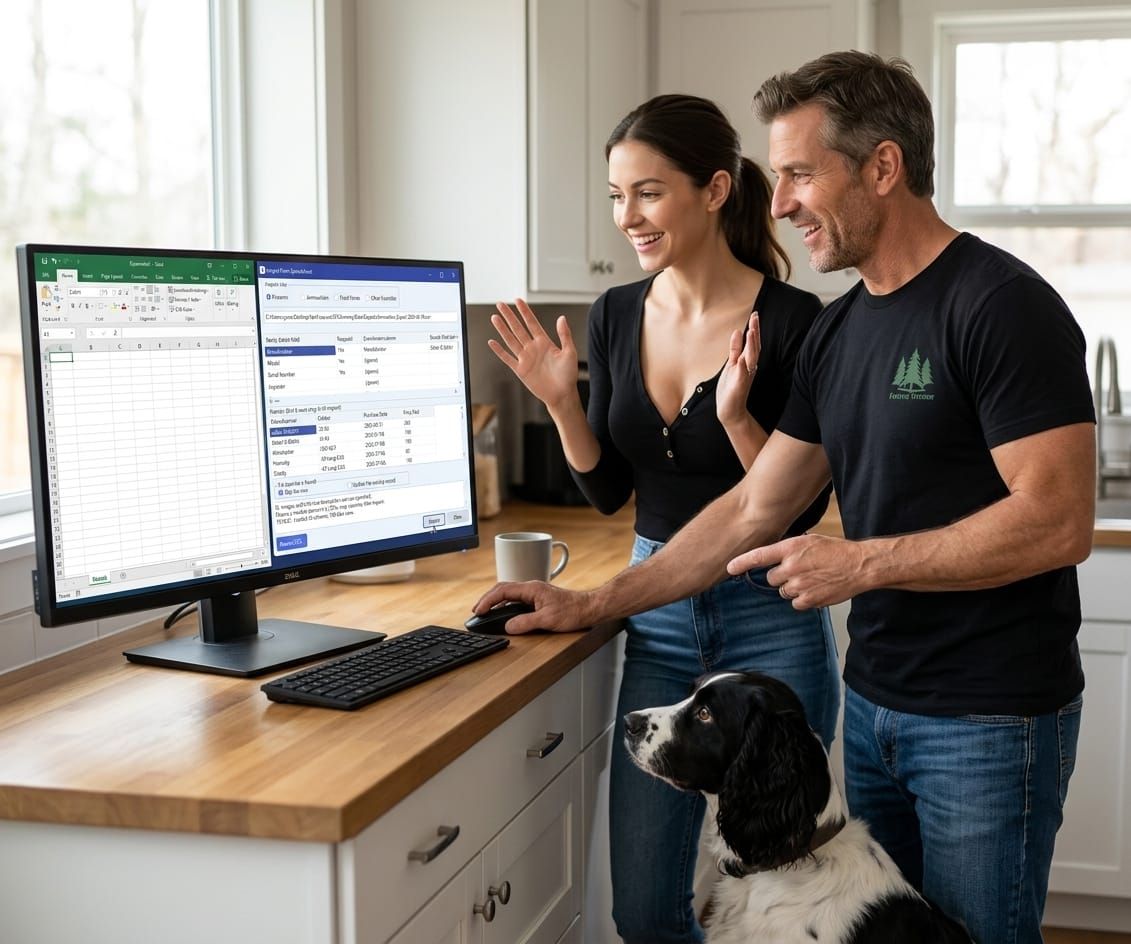
Ready Center 1.5 (and the Import from Spreadsheet tool) is there so you do not type that again. You do not cut and paste fifty rows into a form. You point at the CSV, check that Manufacturer landed on Manufacturer and Serial Number landed on Serial Number, glance at the preview, and import.
That is the whole point: make the move easy. The software should take the list you already have, not punish you for having been organized on paper or in Excel first.
How you bring a file in
- In Excel, Save As CSV (or export from Ready Center if the data is already in the program).
- Data Center → Import.
- Pick the module: Firearms, Ammunition, Food Stores, or Other Essentials.
- Browse to the file. Columns that share names map themselves. If something is off, pick the right column from the dropdown.
- Look at the first eight rows in the preview. If those look wrong, stop and fix the map.
- Duplicates: skip (leave what is already there) or update (overwrite from the sheet).
- Import. The log tells you how many inserted, skipped, updated, or failed.
ID numbers, photos, and rich-text descriptions do not come in with the sheet. Serials, makers, models, dates, quantities, locations — those do. Attach pictures in the module afterward.
If Excel has already turned .30-06 into 0.3, that happened in Excel, not in the importer. Format Caliber as Text before you save the CSV, or import a file you exported from Ready Center without opening it in Excel first.
The other reason this exists: a forgotten password
Ready Center stores your data locally, encrypted, under a master password you set. There is no back door. Support cannot reset it. If the password is gone, that database will not open. That is self-custody. It is also a hard lesson if you only had the one copy inside the program.
Someone in my family lost a password on an encrypted store. There was no recovery email, no “forgot password” link, and no one to call who could undo it. The data was still on the disk. It was also gone for every practical purpose.
So we built a boring failsafe on purpose.
On a day when you still remember the password:
- Export the tables to CSV from Data Center.
- You get Firearms, Ammunition, Food Stores, Essentials, Maintenance.
- Those files are not encrypted. They are a readable inventory. Treat them that way.
- Copy them off the machine. Put that copy in a safe — same place you would put a passport, a CC permit, or a paper gun list. Not the desktop. Not email. Not a shared folder.
If you ever forget the password, you install a fresh copy, choose a new master password, and import those CSVs. You are not retyping the collection. You are loading the list you already exported. You will not get photos or Document Center blobs back from CSV; those need a backup of the data folder and a password you still know. The spreadsheet path is for the records that make the system usable again.
Easy on the good day. Recoverable on the bad one.
Import is for the person who already has a spreadsheet and does not want a second job. Export-plus-safe is for the person who understands that “we cannot recover your password” is a feature, not a slogan — as long as you have a way to rebuild.
Keep the working database encrypted. Keep a CSV copy where only you can reach it. When you add guns or rotate food, export again so the failsafe matches the house.
If you want the step-by-step inside the program, the Import from Spreadsheet help topic in the guide walks the screen. The short version is the one above: map, preview, import. And put the export in the safe while you still remember the password.
— Rob